
Membership Levels
FREE MEMBERSHIP
- One Practice Hand each day
- One Competition Hand each day
-
Limited Forum access
PREMIUM MEMBERSHIP
-
Unlimited Practice
- Unlimited
Competition Hands
-
Full access to discussion forums
Does the game provide hints?
The game can provide significant assistance but does not impose it. You can play without assistance but if you are a beginner or intermediate we recommend you use the hints provided even if it is only to compare the hints with your own decisions.
MAIN MENU
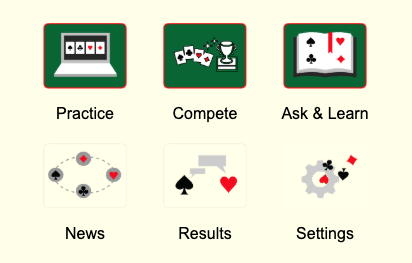
Click on any of the main menu items. If you are not already logged in you will be prompted to login (or register if you are not already a member).
- Set your bidding system
- update your payment details
- upgrade to premuim membership
Setting Your System
Before playing for the first time, go to the 'Settings' area and adjust your settings. Settings can be accessed by selecting 'Settings' from the main menu, or within a game, click on your username (in the to/right of the game screen) and select 'Membership'.
Set your bidding profile here. If you are a beginner and unsure how to set your system then use the following rules (you can always change them later):
If you are from Europe or New Zealand then set them to the 'Acol' System as below:
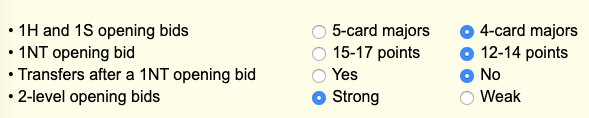
If you are from any other country choose the 'Standard American' system settings as below:

You can always change your setting later as you expand your knowledge of Bridge.
In settings you can also update your payment details or (if you are no already a Premium member, upgrade to a Premium membership and get unlimited Practice hands and Competition hands, and full access to all the discussion forums.
Play against the computer. Unlimited random hands (for Premium members. Free members - one hand per day).
During the bidding process hint are available for the bidding. Beginners can even bid entirely on the bidding hints and focus on improving their play.
During the 'Play' phase the previous trick can be displayed by clicking the tricks score and the current contract can be displayed by clicking the contract details.
Practice Hands can be replayed or redealt from any seat (North, East, West, South)
Compete in daily Bridge competitions. Once you have played each hand, you'll have the opportunity to comment or ask questions on that hand. These comments and answers are available in the 'Ask and Learn' section after that day's competition has been completed.
Here you will find more Bridge lessons and more forums for asking questions. Most lessons also include the ability to comment and ask questions.
Forums/Comments
Comments from lessons and Practice Hands appear immediately. Comments from Competition Hands are delayed until after the competition closes.
The comments appear 17 hours after the set of 10 hands become available, but include all hands - up to number 130 sometimes - that have had a comment made. To see responses to your comments, if any, you have to go back later and look at the hands again on "Ask and Learn". The comments stay up for 3 days or 72 hours.
Results from the daily competitions. You'll see the previous day's results and can also look review the past 7 days.
Open results and you see your score at the top, then everyone else's who has finished at that time. Click on your playing name and see all hands you played and what score you made for each, both in points and position in the table. You can also click on any player and see how they fared. Each hand is worth 10% of the total. So even after a couple of disasters you still have 80% to go for. Using the 'results' tab, you can click on the descriptor at the top of each column - Name/Played/Day/Week and get more organized data. For name it will be sorted alphabetically, click again and they invert. Click 'played' and you can look at players from 10 completed hands down, click again and it is 2 completed hands up. Click 'Day' or 'Week' and you get a list of all players in order of % achieved irrespective of hands played both up and down.
Background
Lastly, on the 'Compete' screen if you click on your name at the top right a dropdown of 'Membership' and 'Background' appears. Click on 'membership' to change your settings, remembering to click 'save'. Click on 'background' and it goes away, to reduce distraction from the cards.
Fequently Asked Questions
Am I playing against people or a computer?
On Practice Hands and Competition hands you are playing against a computer.
Vulnerability is indicated on the bidding pad itself. The positions which are vulnerable are written in red text
If the full table is not displaying, resizing your browser window to make it narrower should move the lower content upwards. This will also make the text and cards smaller so see the tips below for increasing those.
We are working on an update that will improve the game layout and text sizes but meanwhile you can improve the game display by using the 'zoom' feature on your web browser.
On windows hold down the CTRL key and press +, (on Mac hold down the 'Command' key and press +). This will increase size of the text. You can zoom back out using CTRL - (or Command - on the Mac).
Once you have increased the size of the text you may find some parts of the game have been pushed out of sight and you need to scroll to see them. You can correct this by narrowing the width of your browser window. On a widescreen, usually having the browser window displaying half or 2/3 the width of the screen works well.
In a game, when you click on the 'Menu' button, a menu will popup including buttons to Increase or Decrease your card size.
Not only is the ?redeal? option still there (click on the Hand number box along the top of the screen), but it is in an improved form: now when you replay a hand, you no longer have to play it right through before being able to replay it again. You can abandon the hand at any point and replay it immediately.
You can see the previous trick by clicking in the box along the top of the screen showing the running trick total (second from the right).
The auction can also be displayed at any time during the game by clicking on the box showing the contract (middle).
To set your system, from the main page (that has choices for Practice,
Compete, Learn etc.), choose 'Settings' to change your bidding system.
Bridgedoctor offers these conventions:
Transfers after 1NT openings
5 card or 4 card majors
Strong or Weak No trump opening bids
and
Strong or Weak 2 opening bids
After changing your settings you will need to refresh your browser to load your new system hints/feedback.
Create a Table
At the end of the game you will see two buttons to display results of other players. Clicking a button will list the results. Click the same button a second time to close it.
To see what others bid and made on the same hand in the Compete section, click on 'Hand X scores' in the box which appears in the middle of the table at the end of each hand.
iPad and iPhone
Click the share button (the box with an arrow pointing vertically upwards) and from pop-up
window select 'Add to Home Screen'
Android Devices
On Android the process varies a little depending on which version of
Android you have but one of the following should work:
- In your browser, select the menu, choose 'More' and choose 'Add
Shortcut to Home'
or
- In your browser select, select the menu and choose 'Add Shortcut'
or
If you are using the Firefox browser, select the menu, select
'Bookmark' and select 'Add To Home Screen'
The Bridgedoctor game requires a modern web browser to display correctly and does not require the Adobe Flash addon so will display equaly well on desktop or mobile. If your computer or mobile device has dificulty displaying the game it is likely you are using an older web browser (eg. Internet Explorer). we recommend downloading the latest version of Chrome, Firefox or Safari web browsers.
Google Chrome: Download the Google Chrome web browser.
or Mozilla Firefox https://www.mozilla.org/en-US/firefox/new/
The game should run well on either browser, however for a small number of members Chrome does not work but Firefox web browser does.
If you are using a mobile device the browsers may be available through your App Store on Apple devices or your Play Store on Android.
We don't recommend it. It is not necessary to play the new game but when Internet Explorer upgrades, it also upgrades major parts of your Windows operating system, so upgrading Internet Explorer is a much larger and complex task than just downloading the Google Chrome web browser. For this reason we recommend you just install the Chrome or Firefox browser as described above. You can still use Internet Explorer for browsing the web if you wish, but you will find web pages load faster and perform much better in the Chrome for Firefox.